 blog
blog
7 Best Cybersecurity Practices for Remote Employees 2026
Table of Contents
- Why Cybersecurity Practices Matter for Remote Employees
- 1. Enable Multi-Factor Authentication Across All Work Accounts
- 2. Create a Remote Employee Security Checklist You Actually Use
- 3. Implement Secure Remote Access for Employees
- 4. Strengthen Remote Work Phishing Prevention Skills
- 5. Secure Your Home Network Security for Remote Workers
- 6. Keep Devices Updated and Patch Vulnerabilities
- 7. Know What to Do If You Suspect a Security Breach
- Frequently Asked Questions
Last Updated: October 15, 2026
Why Cybersecurity Practices Matter for Remote Employees
Remote work has become the norm for millions of employees across the country. According to GTeams' 2026 Cybersecurity Best Practices report, 46% of business owners identified AI prompt hacking and phishing as their primary concern for remote teams.
A single compromised account can expose customer data, financial records, or sensitive business information. The 7 best cybersecurity practices for remote employees in 2026 focus on what works: strong authentication, awareness, and quick response.
Most take under an hour to set up, but they separate a secure team from a target.
1. Enable Multi-Factor Authentication Across All Work Accounts
Enable MFA on:
- Email and calendar accounts
- Cloud storage (OneDrive, Google Drive, Dropbox)
- VPN and remote access tools
Most services offer MFA via authenticator app, Google Authenticator, Microsoft Authenticator, or Authy, which is more secure than text message codes.
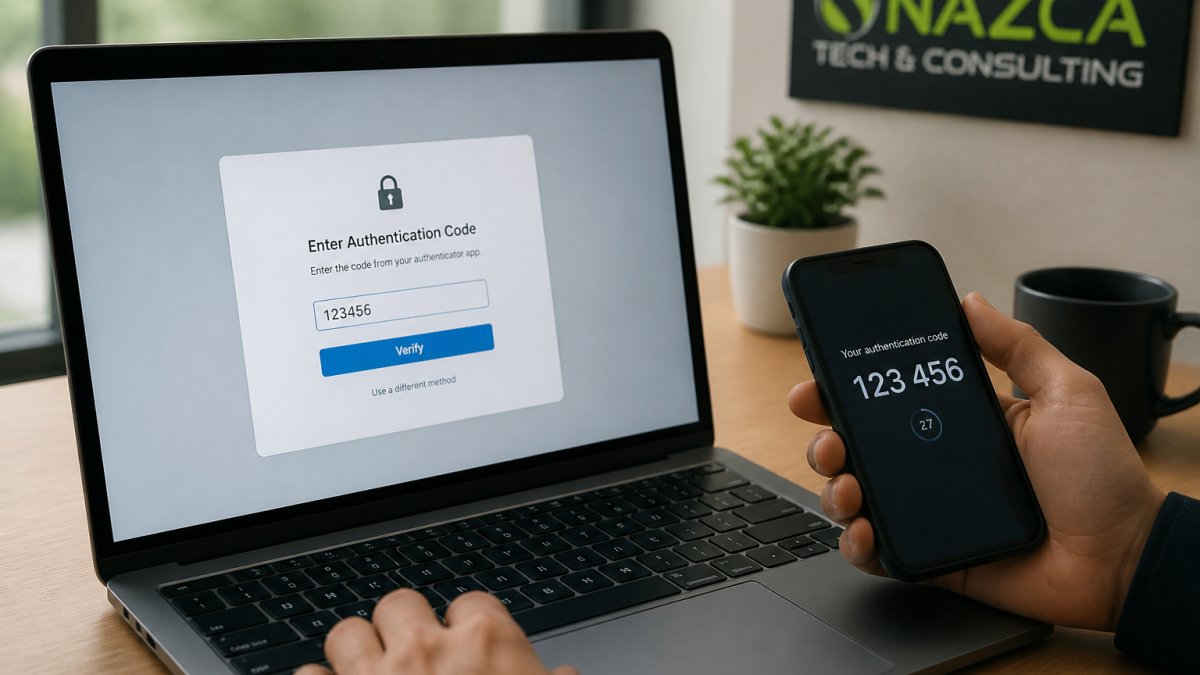
Set it up today: five minutes per account blocks 99% of automated attacks, preventing more breaches than anything else here.
2. Create a Remote Employee Security Checklist You Actually Use
Most security checklists fail because they mix employee and IT tasks, so nobody knows what they own.
Here's a prioritized seven-step checklist to complete in your first week and maintain going forward. Order matters: the top items block the most common attacks.
| Priority | Practice | What You Do | Frequency |
|---|---|---|---|
| 1 | Turn on MFA | Enable an authenticator app on email, cloud storage, VPN, and your password manager | Once, then verify quarterly |
| 2 | Install a password manager | Generate and store unique 16+ character passwords for every work account | Once, then use daily |
| 3 | Patch your devices | Turn on automatic updates for OS, browser, and work apps; restart the same day | Weekly check |
| 4 | Lock down your home router | Change the admin password, enable WPA3, disable WPS, update firmware | Once, then monthly |
| 5 | Separate smart devices | Move IoT devices (cameras, speakers, thermostats) to a guest network | Once |
| 6 | Verify before you click | Hover links, confirm sender domains, call to verify unusual requests | Every email |
| 7 | Know your breach drill | Save IT's phone number; know the disconnect-report-change sequence | Once, then review quarterly |
Employee vs. employer: who owns what
Don't assume your company handles something it doesn't. Use this split as a starting point, then confirm with IT:
- You own: MFA enrollment on your accounts, password manager use, applying OS and app updates on your device, router configuration at home, verifying suspicious messages before acting, and reporting incidents immediately.
- Your employer typically owns: VPN or Zero Trust access provisioning, endpoint detection and response (EDR) agents, company-issued device management, security awareness training content, and incident response escalation.
- Shared or negotiated: BYOD device rules, whether personal phones can access work email, and what monitoring is disclosed to you.
If unsure which column a task falls into, ask, guessing is how gaps form.
Make it stick
Print the table and tape it near your workspace for the first month.
3. Implement Secure Remote Access for Employees
Employees need a safe way to connect to work systems from home. The wrong setup exposes your entire network; the right one protects it.
A VPN (virtual private network) encrypts all traffic between the employee's device and your company network, a secure tunnel outsiders can't see into.
Secure remote access for employees also requires:
- Strong authentication (MFA, as covered above)
- Device checks before allowing connection (does the device have the latest security patches?)
- Session logging (who logged in, when, from where)
Many companies now use Zero Trust access instead of traditional VPNs: never trust, always verify.
4. Strengthen Remote Work Phishing Prevention Skills
Phishing in 2026 doesn't look like 2019. Attackers use large language models for flawless, context-aware emails, voice cloning to impersonate executives, and generative video to fake live meetings.
The current attack patterns you need to recognize
- AI-written spear phishing. Messages reference your real projects, your manager's name, and recent company events pulled from LinkedIn or press releases. The grammar is perfect. The only tell is the request, an unusual payment, credential entry, or file download.
- Deepfake voice calls. A caller sounds exactly like your CFO or CEO and asks you to wire funds or read a verification code. Voice cloning needs only a few seconds of public audio.
- Deepfake video meetings. Attackers join a video call with a synthesized face and voice, often during a "new vendor onboarding" or "urgent wire" scenario.
Verification steps that actually work in 2026
- Verify out-of-band. If an email or call requests money, credentials, or a file, hang up and call the person back using a number from your company directory, never a number from the message.
- Use a shared secret or code word with your team for high-risk requests. If the caller cannot provide it, stop.
- Treat urgency as a red flag, not a reason to hurry. "Act now or the account locks" is a pressure tactic. Real IT departments do not operate on 60-second deadlines.
- Never approve an MFA push you did not initiate. If you get an unexpected push, deny it and report it, someone has your password.
- Scan QR codes with caution. Preview the URL in your phone's camera app before opening. If it is a shortened link or an unfamiliar domain, do not proceed.
- Confirm the sender domain character by character on any request involving money or credentials. Look-alike domains (acme-corp.com vs. acme-corp.co) are common.
Training that builds muscle memory
Annual videos don't change behavior; short, frequent simulations do. Security teams commonly run monthly simulated phishing campaigns with immediate, non-punitive feedback, paired with 5-minute micro-lessons on that month's attack type (one month deepfakes, the next quishing).
5. Secure Your Home Network Security for Remote Workers
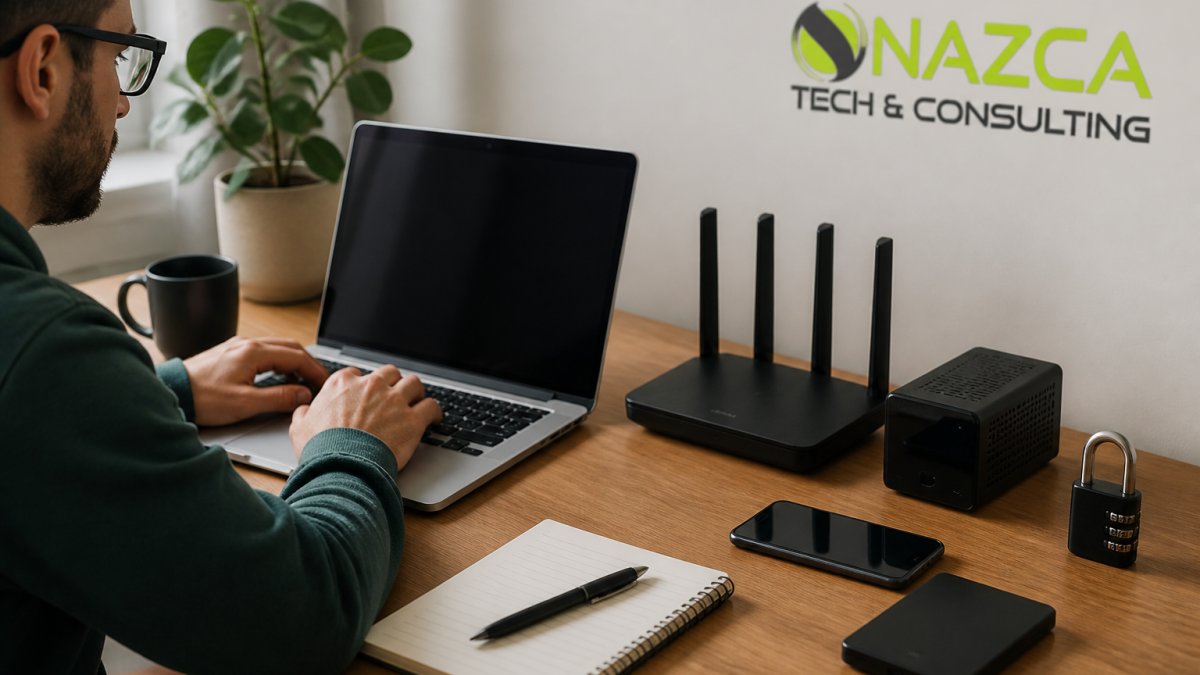
Your home Wi-Fi is the entry point to everything on your device. Weak home network security for remote workers lets anyone nearby intercept traffic or inject malware.
Router and Wi-Fi Configuration
Change your router's default password immediately, attackers know the preset admin credentials. Your first step:
- Log into your router (usually 192.168.1.1 in your browser)
- Change the admin username and password to something strong and unique
- Enable WPA3 encryption (or WPA2 if WPA3 isn't available)
Update router firmware monthly; manufacturers release patches for new vulnerabilities. Check your router's settings page for updates.
Shared Household Devices and Smart Devices
Smart devices, doorbells, thermostats, speakers, security cameras, can be compromised and then attack your work device or eavesdrop on your network.
Isolate them on a guest network, separate from your work device, so they can't access your work files or credentials.
Change default passwords on all smart devices, and use a password manager to track them.
Consider disabling microphones on smart speakers when you're working with sensitive information. It's paranoid, but it's also effective.
6. Keep Devices Updated and Patch Vulnerabilities
Software updates fix security flaws. Attackers exploit unpatched devices constantly. An outdated device is a vulnerable device.
Set your devices to update automatically:
Windows:
- Settings → Update & Security → Windows Update
- Choose "Install updates automatically"
Mac:
- System Settings → General → Software Update
- Enable "Automatic updates"
iPhone/iPad:
- Settings → General → Software Update
- Enable "Automatic Updates"
Android:
- Settings → System → System update
- Enable "Automatic system updates"
Don't ignore update prompts, restart that day. Updates take 10 minutes; a breach takes months to recover from.
Also update applications: browsers, email clients, and productivity tools all need patches. Most can update automatically, enable it.
7. Know What to Do If You Suspect a Security Breach
You clicked a suspicious link. Your password might be compromised. Your device is acting strange. What now?
Act fast. Breaches spread. The first hour matters.
- Disconnect from the network. Unplug ethernet or turn off Wi-Fi. This stops malware from spreading or sending data.
- Call your IT department immediately. Don't email. Don't wait. Call now. Provide details: what happened, when, what device.
- Change your passwords from a different device. Use your phone or a personal computer. Change email first, then work accounts, then financial accounts. Use a password manager to generate new strong passwords.
- Enable MFA on all accounts immediately. If you haven't already, this is the moment.
- Monitor your accounts for unauthorized activity. Check login history. Look for accounts you don't recognize.
- Document everything. Write down what happened, when you noticed it, what you did. This helps your IT team investigate.
- Report it to your manager. Let them know you've notified IT and what steps you've taken.
Don't panic or try to fix it yourself. Let IT handle the technical work; your job is to report and cooperate.
The 7 best cybersecurity practices for remote employees in 2026 are straightforward: authenticate strongly, stay aware, secure your home network, keep software current, and respond quickly when something feels wrong.
At Nazca Tech, we help teams implement these practices without slowing them down. Our technicians are trained in HIPAA compliance and can help you set up secure remote access tailored to your business. Join Nazca Tech and get the security infrastructure your remote team needs, with support available within 1 hour for remote issues and 3 hours for on-site emergencies.
Frequently Asked Questions
What should a remote employee do immediately after clicking a suspicious link?
Stop using the device and disconnect it from the network. Report the incident to your IT team or security department immediately. Do not enter any passwords or sensitive information. Change your passwords from a secure device only after your IT team confirms the device is safe. Document exactly when you clicked the link and what the message said to help your team investigate. Your quick action prevents attackers from spreading further into company systems.
Why is a remote employee security checklist essential for protecting company data?
A remote employee security checklist ensures you follow the same security practices every day, reducing the chance you'll skip a critical step when you're busy or distracted. It covers multi-factor authentication, strong passwords, device updates, phishing awareness, and home network security in one place. Consistent practice prevents the majority of successful attacks, which exploit human error and forgotten steps rather than technical vulnerabilities. Many breaches happen because employees don't follow basic practices consistently.
How does secure remote access for employees differ from a VPN?
Traditional VPNs route all traffic through a single tunnel, but secure remote access uses Zero Trust principles: verify every user and device before granting access, regardless of location. Zero Trust checks device security, user identity, and the specific application you're accessing. This approach is more secure than VPN alone because it prevents lateral movement if your device is compromised. Many organizations are shifting from VPN-only to Zero Trust or SASE (Secure Access Service Edge) solutions for stronger protection.
What makes remote work phishing prevention different from office phishing awareness?
Remote workers are at higher risk because they lack in-person verification, work in isolation, and often use personal devices and home networks. Attackers send more sophisticated phishing emails targeting remote workers, including deepfakes and AI-generated content in 2026. You must verify requests through a second channel (call the sender directly), never click links in unexpected emails, and report suspicious messages immediately. Remote work phishing prevention requires extra vigilance because you can't ask a colleague to verify something in person.