 how-to
Secure Personal Devices for Remote Work: A Practical Guide
Table of Contents
- Why Securing Personal Devices Matters for Remote Work
- What You'll Need Before You Start
- Step 1: Set Up Device Encryption and Screen Lock
- Step 2: Establish Strong Passwords and Multi-Factor Authentication
- Step 3: Deploy BYOD Security Best Practices
- Step 4: Implement a Personal Device Security Policy for Employees
- Step 5: Use Mobile Device Management for BYOD and Secure Remote Access for Employees
- Common Mistakes to Avoid
- Frequently Asked Questions
Last Updated: October 18, 2026
Why Securing Personal Devices Matters for Remote Work
Remote work has fundamentally changed how we handle company data. Employees now access sensitive information from home offices, coffee shops, and hotel rooms using secure personal devices like laptops, tablets, and phones. This shift creates real security risks that can't be ignored.
When personal devices connect to work systems without proper protection, they become entry points for attackers. A compromised phone can expose patient records. An unencrypted laptop can leak financial data. A weak password can grant access to your entire network. These aren't hypothetical threats, they happen daily across industries.
The challenge is balancing security with practicality. Employees want flexibility. Businesses need protection. The solution isn't choosing one over the other. It's implementing smart security practices that let people work remotely while keeping data safe.
At Nazca Tech, we've guided healthcare practices and growing businesses through this exact problem. Over 21 years, we've seen what works and what fails. The difference usually comes down to three things: clear policies, proper setup, and ongoing management. This guide walks you through all three.
What You'll Need Before You Start
Before diving into technical steps, gather these tools and information:
- Device list: Know what devices your team uses (Windows laptops, MacBooks, iPhones, Android phones)
- Password manager: Choose one for your organization (LastPass, 1Password, Bitwarden, or similar)
- Mobile device management platform: Consider options like Microsoft Intune, Google Workspace, or MDM solutions designed for BYOD
- Secure Wi-Fi network: Access to a router you control or a trusted network
- VPN software: For encrypting remote connections
- Backup solution: Cloud storage or external drive for data protection
You'll also need clear answers to these questions before starting:
- What data is truly sensitive in your organization?
- Which devices will access work systems?
- Who approves bring-your-own-device access?
- What happens if a device gets lost or stolen?
Step 1: Set Up Device Encryption and Screen Lock
Device encryption protects data if a device is lost, stolen, or accessed without permission. Screen locks prevent someone from simply picking up your phone and browsing your email.
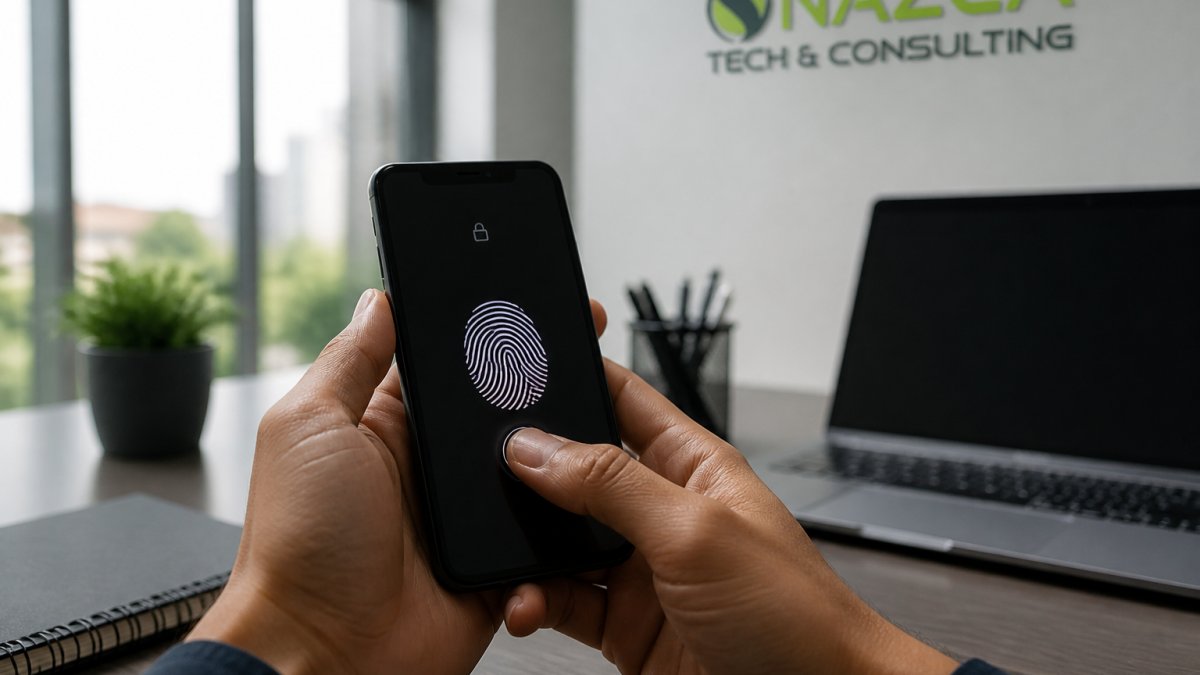
For Windows laptops: Enable BitLocker encryption through Settings → System → About → Advanced Options → Device Encryption. Turn it on and save your recovery key somewhere safe.
For MacBooks: FileVault encryption comes built in. Go to System Settings → Privacy & Security → FileVault and turn it on.
For iPhones and iPads: These devices encrypt data automatically when you set a passcode. Go to Settings → Face ID & Passcode and create a strong 6+ digit code.
For Android phones: Go to Settings → Security → Encryption and enable device encryption. Set a strong PIN or pattern lock. Enable "Require PIN to unlock" with no delay.
The key here is consistency. Every device accessing work systems needs encryption. No exceptions. Encryption alone won't stop determined attackers, but it stops casual access and protects data in transit.
Step 2: Establish Strong Passwords and Multi-Factor Authentication
Weak passwords are the easiest way for attackers to gain access. Strong passwords are your first real defense.
Password requirements:
- Minimum 12 characters
- Mix uppercase, lowercase, numbers, and symbols
- Avoid dictionary words, names, or birthdates
- Never reuse passwords across accounts
- Change passwords every 90 days for critical accounts
Use a password manager to generate and store these. A password manager like Bitwarden or 1Password means your team remembers one master password instead of dozens. This actually improves security because people stop writing passwords on sticky notes.
Multi-factor authentication (MFA) adds a second verification step. Even if someone steals your password, they can't access your account without the second factor.
Enable MFA on:
- Email accounts (the master key to everything else)
- Cloud storage (OneDrive, Google Drive, Dropbox)
- VPN access
- Any system containing sensitive data
Use authenticator apps (Microsoft Authenticator, Google Authenticator, Authy) rather than SMS when possible. SMS can be intercepted. Authenticator apps generate codes only your phone can produce.
Step 3: Deploy BYOD Security Best Practices
Bring-your-own-device (BYOD) security means treating personal devices like they're company equipment for security purposes, even though they're not company property.
Create clear BYOD policies that cover:
- Which devices qualify (minimum OS version, device type)
- What data can be accessed from personal devices
- Required security software and updates
- Screen lock and encryption requirements
- Consequences for non-compliance
- What happens if a device is lost or compromised
Your policy should separate work data from personal data. This protects both the business and the employee's privacy. An employee shouldn't worry that accessing work email from their personal phone means the company owns their entire device.
Implement these practical boundaries:
- Use work profiles or separate user accounts for work apps
- Keep work data in designated folders or apps
- Never sync personal files with work accounts
- Use separate browsers for work and personal browsing
- Log out of work systems when finished
According to Gable's 2026 remote work statistics, 73% of remote employees use personal devices for work. That number won't change. The question is whether those devices are secure or not.
Step 4: Implement a Personal Device Security Policy for Employees
A written policy for securing personal devices sets expectations and protects both sides. It should be clear enough that a new hire understands it in 10 minutes.
Your policy should address:
Device requirements:
- Operating system must be current or within one version
- Devices must support encryption
- Devices must support multi-factor authentication
- Minimum screen lock timeout (5 minutes recommended)
Software and updates:
- Install security software immediately
- Enable automatic updates for OS and applications
- Remove unused apps quarterly
- Never use jailbroken or rooted devices
Data handling:
- Store work files only in approved cloud storage
- Never email sensitive data to personal email
- Delete work data when employment ends
- Report lost or stolen devices within 24 hours
Network security:
- Use VPN for all remote access
- Avoid public Wi-Fi for sensitive work
- Use WPA3 encryption at home
- Restart router monthly
Compliance verification:
- Annual device security audits
- Quarterly password audits
- Real-time monitoring through MDM
- Incident response procedures
Make the policy available to all employees. Have them sign it. Review it annually and update as threats change. A policy that sits in a drawer helps nobody.
Step 5: Use Mobile Device Management for BYOD and Secure Remote Access for Employees
Mobile device management (MDM) is software that manages devices remotely. It enforces policies, deploys updates, and can wipe data if a device is lost.
Mobile Device Management Setup
MDM solutions like Microsoft Intune or Google Workspace let you:
- Require encryption on all devices
- Force password complexity
- Install security software remotely
- Monitor compliance in real time
- Wipe devices if they're lost or stolen
- Push security updates automatically
To set up MDM:
- Choose a platform (Microsoft Intune for Windows/iOS/Android, Google Workspace for Google devices, or a third-party option like Kandji)
- Create enrollment policies specifying which devices can connect
- Define compliance rules (encryption, updates, password requirements)
- Set up alerts for non-compliant devices
- Test with a small group before rolling out company-wide
MDM seems intrusive at first. Employees worry about privacy. The key is transparency. Tell your team exactly what MDM monitors (device security settings) and what it doesn't (personal files, browsing history, location). Privacy boundaries matter. Respecting them builds trust.
Secure Remote Access Configuration
Secure remote access means employees can connect to work systems safely from anywhere.
VPN (Virtual Private Network) creates an encrypted tunnel between the device and your network. All traffic flows through this tunnel, protected from interception.
To configure VPN:
- Choose a VPN solution (OpenVPN, WireGuard, or commercial options)
- Generate certificates and keys for each device
- Install VPN client software on all devices
- Require VPN connection before accessing sensitive systems
- Log VPN connections for audit purposes
- Test from various networks (home, coffee shop, hotel)
VPN alone isn't enough. Combine it with MFA. A VPN connection plus multi-factor authentication creates two barriers attackers must overcome.
Zero Trust access goes further. Instead of trusting anyone inside the network, verify every connection. Check device compliance before granting access. Verify MFA every time. Monitor for suspicious activity. This approach takes more setup but provides stronger protection.
Research from Pumble's 2026 remote work statistics shows that VPNs are included in 74% of company remote-work security policies. They're standard practice for good reason. They work.
Common Mistakes to Avoid
Mistake 1: Assuming personal devices are less secure than company devices. Personal devices often have better security. Users maintain their own devices carefully.
Mistake 2: Creating policies nobody follows. A policy requiring 20-character passwords with 4 symbol types sounds secure.
Mistake 3: Ignoring home network security. Securing the device means nothing if the home Wi-Fi is weak. Require WPA3 encryption at home.
Mistake 4: Forgetting about lost or stolen devices. Have a process for this.
Mistake 5: Treating remote work security as a one-time project. Security requires ongoing attention. Threats change. New vulnerabilities appear. Policies need updates.
Mistake 6: Not communicating security requirements clearly. Employees want to do the right thing. They just need to know what that is.
Mistake 7: Skipping encryption because "it's too complicated." Modern devices encrypt with one click. There's no excuse to skip this step.
Securing personal devices for remote work isn't about preventing every possible attack. It's about making smart choices that block common threats while keeping work practical.
Nazca Tech has helped healthcare practices and growing businesses implement these exact practices over 21 years. Our technicians are trained in HIPAA compliance and security protocols. We understand that security needs to work alongside your actual business operations, not against them. NIST cybersecurity guidance provides additional frameworks if you need deeper technical detail.
Frequently Asked Questions
What does BYOD stand for in cybersecurity?
BYOD stands for Bring Your Own Device. It refers to a workplace policy that allows employees to use personal devices, smartphones, tablets, and laptops, to access company systems and data. BYOD can reduce costs and increase employee flexibility, but it requires strong security controls. Organizations using BYOD must implement mobile device management, strong passwords, multi-factor authentication, and data separation to protect sensitive information from unauthorized access.
How can I secure my personal laptop for remote work?
Start by enabling full-disk encryption (FileVault on Mac, BitLocker on Windows) and setting a strong password. Install a password manager and enable multi-factor authentication on all work accounts. Keep your operating system and all software updated with the latest security patches. Use a VPN for remote access and avoid connecting to public Wi-Fi without one. Set automatic screen lock to activate after 5-10 minutes of inactivity. Separate work and personal data by creating a dedicated work profile or user account on your device.
What's the safest way to connect to company systems remotely?
Use a VPN (Virtual Private Network) to encrypt all traffic between your personal device and company servers. Ensure your device has endpoint protection software installed and all operating system updates applied. Enable multi-factor authentication on your work account for an extra security layer. Avoid public Wi-Fi networks; if you must use them, connect through a VPN first. For highly sensitive data, use a dedicated work device or a work profile managed by mobile device management software rather than mixing personal and work access on one device.
How do I keep work data separate from personal data on my phone?
Use your device's built-in work profile feature (available on Android and iOS). This creates a separate, encrypted container for work apps and data. Alternatively, mobile device management software can enforce data separation automatically. Store work files in cloud services (like OneDrive or Google Drive) that sync only to your work profile. Never save passwords or sensitive credentials in personal note-taking apps. Set automatic lock and screen timeout on your device, and enable remote wipe capability so your company can erase work data if the device is lost or stolen.